Working with .vox files
You will: import a .vox file, edit it, save it as .vox again, and export
the same model to a game engine.
Time: 10 minutes.
1. Import
Section titled “1. Import”In the Voxel tab of the sidebar, open Import and press Import .vox (or use File ▸ Import ▸ Voxels (.vox)), then pick your file. You get an editable voxel model with the file’s palette and materials. A file with several models comes in with its layout.
2. Edit
Section titled “2. Edit”Press Tab. Everything in Drawing and Selection now works on it. You can also:
- run a generator such as Weathering or Damage on it;
- mark its parts as groups and rig it (see Characters).
3. Save it as .vox
Section titled “3. Save it as .vox”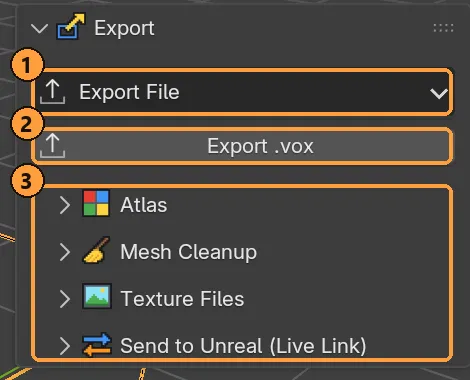
Click Export ▸ Export .vox ②, or choose File ▸ Export ▸ Voxels (.vox).
- Metallic and emission are saved. The roughness of plain matte colours is not.
- A model bigger than 256 on a side is saved as several models in one file.
4. Or export to a game engine
Section titled “4. Or export to a game engine”Click Export ▸ Export File ① and pick Godot, Unity, Unreal, glTF or FBX. The palette becomes one texture on one material, and the axes and scale are set for that engine. See Export.