Save and organise your own shapes
You will make: your own entry in the shape library, filed into a category of your choosing. You will learn: Save Selection as Shape, category slash-paths, Organise, correcting a built-in shape safely, and exporting a shape pack. Time: 8 minutes.
1. Something worth saving
Section titled “1. Something worth saving”Model anything small and self-contained — a barrel, a lamppost, a single tree. Placing shapes is covered in Model a prop; this tutorial picks up from having something you’d want to reuse.
2. Save it
Section titled “2. Save it”- Press A to select every voxel of it (or box-select just the part you want to save — a saved shape is always cropped to its filled voxels).
- Voxel Library ▸ Organise ▸ Save Selection as Shape (or Shapes ▸ Save Shape in the Voxel Mode panel — same operator, two doors to it).
- Name it. Typing slashes files it in nested categories at once:
Props/Street/Lamppostcreates all three levels in one save if they don’t already exist.
It keeps its colours exactly as painted, and lands under My Shapes — your own library folder, set in the preferences.
3. Find the Organise tools
Section titled “3. Find the Organise tools”Open Voxel Library. Organise is one of the panel’s rows, alongside Placement, Shape Brush, Thumbnails and Correct A Shape.
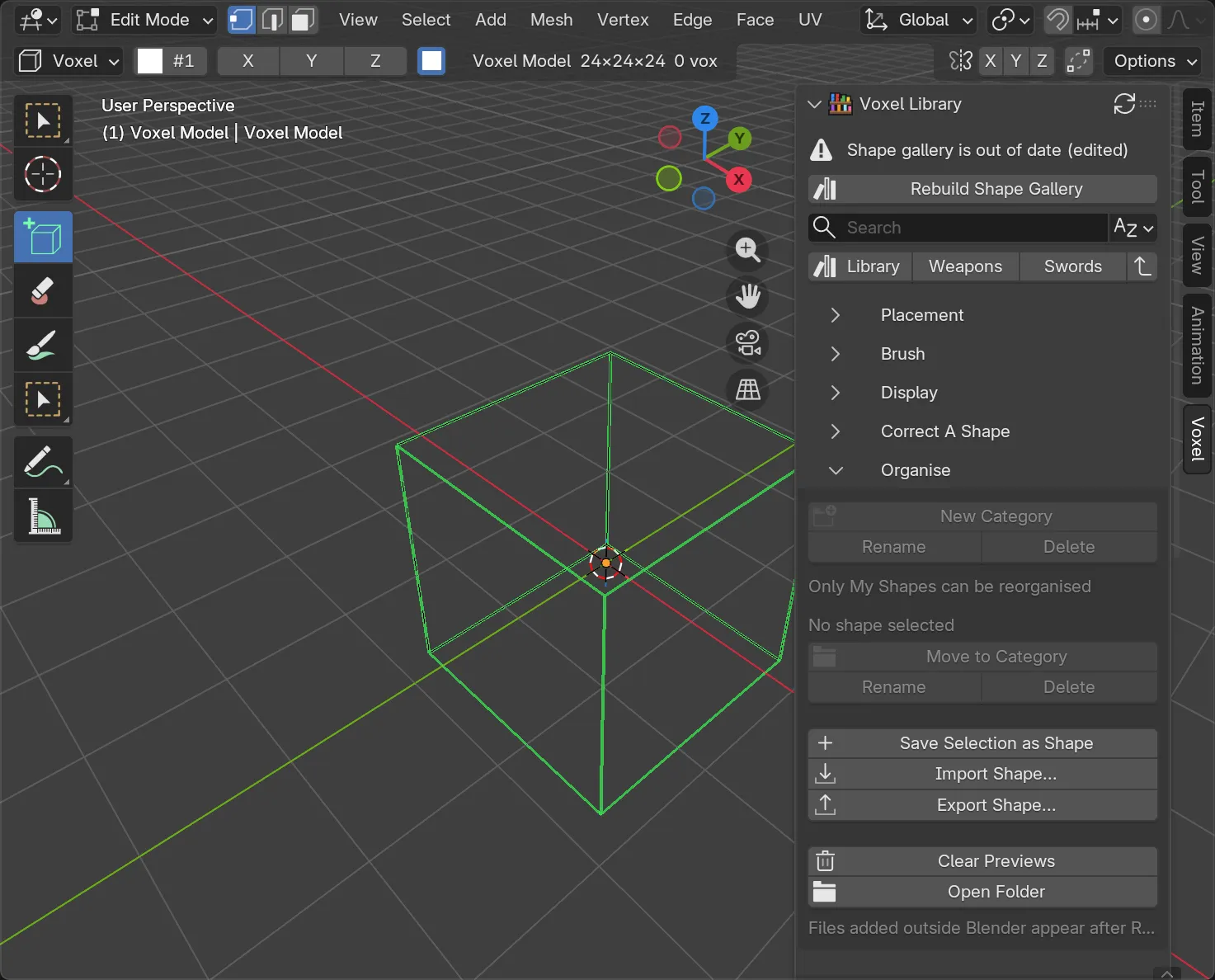
With a shape of yours selected in the browser (click its tile once, don’t place it):
| Button | Does |
|---|---|
| New Category / Rename Category / Delete Category | Manage the category tree |
| Move to Category | File the selected shape somewhere else |
| Rename / Delete | Act on the selected shape |
| Open Folder | Shows the library on disk — a category is a real folder, so back it up, sync it, or hand it over as one |
| Refresh Library | Picks up files someone added outside Blender |
| Clear Previews | Rebuilds thumbnails |
Built-in shapes can’t be renamed, moved or deleted here — they live inside the extension, and an update replaces them. That’s what the next section is for.
4. Correct a shape — built-in included
Section titled “4. Correct a shape — built-in included”Any shape, built-ins too, can be opened, fixed and saved back:
- Click the open (pencil) button on its tile, or Correct A Shape ▸ Open Shape. It opens as a normal voxel model with room around it.
- Edit it — fix proportions, repaint it, add detail.
- Save Over Shape writes it back exactly where it came from, cropped to what you built. With Close After Saving (on by default) the model is closed once it is saved, and you are back in the model you were working on before you opened the shape: in voxel editing, with your selection as you left it.
- The shape shelf now says the gallery is out of date. Press Rebuild in the shelf, or Rebuild Shape Gallery in Voxel Library, and the tile shows the corrected shape.
5. Share a category as a pack
Section titled “5. Share a category as a pack”A whole category can travel as one file. Press F3 and search:
- Export Shape Pack — writes a category, with a manifest, to a
.zip. - Import Shape Pack — unpacks one into your library. It never overwrites a shape you already have, and refuses anything in the archive that tries to write outside the library.
- Shapes and the Voxel Library for browsing, placement keys, and where shapes come from.
- Model a prop if you haven’t placed a shape yet.