Finalising and exporting
Everything about getting a model out lives in the Export section of the Voxel tab. There are four ways out:
| Way out | Gives you | Use when |
|---|---|---|
| Finalise To Mesh | An ordinary Blender mesh, in the scene | Rendering, sculpting, or your own export settings |
| Export File | A .glb or .fbx for a chosen engine |
Shipping to a game engine |
| Export .vox | A .vox file |
Opening the model in another voxel editor |
| Export Sprite Sheets | 8-direction PNG sheets + metadata | 2D games (animated characters) |
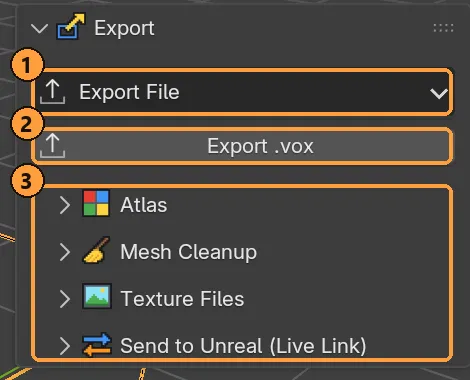
- Export File: pick an engine preset.
- Export .vox: save the model as a
.voxfile. - Atlas, Mesh Cleanup, Texture Files and Send to Unreal (Live Link).
Finalise To Mesh
Section titled “Finalise To Mesh”In the Voxel Mode section. It bakes the model to one mesh carrying its colours and materials.
| Option | Meaning |
|---|---|
| Merge Coplanar Faces | Merge flat runs of faces into big quads. Much lighter, and a quad never crosses from one colour to another. |
| Keep Voxel Model | Leave the editable model in the scene beside the mesh |
| One Object Per Group | One mesh per group instead of one mesh |
| Build Rig | Also build an armature from the groups (see Groups) |
Export File: engine presets
Section titled “Export File: engine presets”Export ▸ Export File, or File ▸ Export ▸ Voxel Model (.glb/.fbx). Pick an engine and a file name:
| Engine | Format | Conventions |
|---|---|---|
| Godot | glTF binary (.glb) |
Godot’s recommended format, Y up |
| Unity | FBX | −Z forward, Y up, metres |
| Unreal | FBX | Centimetres, the same settings as the live link |
| glTF | glTF binary (.glb) |
Engine neutral: Three.js, Babylon, Sketchfab, web |
| FBX | FBX | Engine neutral: Blender’s own axes, −Z forward, Y up, metres |
These are presets, not options, on purpose. Every engine disagrees about which way is up and how big a metre is, and getting it wrong doesn’t fail: it gives you a model on its side at a hundredth of the size.
Bake Atlas (on by default) collapses the palette into one material and one texture. An engine pays a draw call per material, so shipping 256 palette materials is not an option. The exported model carries one material, one embedded texture and UVs into it.
Animation is included when the model is a rigged character or has a rig from its groups. The selected Action is exported with its frame stepping. See Characters for what each output mode can export.
Atlas and cleanup settings
Section titled “Atlas and cleanup settings”Under Export:
| Sub-panel | Settings |
|---|---|
| Atlas | Atlas name, pixels per colour cell, share one atlas across models. Bake Atlas Into Scene does it in place so you can inspect it. |
| Mesh Cleanup | Dissolve (with angle), merge distance, triangulate |
| Texture Files | Also write roughness/metal (ORM) and emission maps, output folder and prefix. Unset, textures are packed into the .blend. |
Export .vox
Section titled “Export .vox”Export ▸ Export .vox, or File ▸ Export ▸ Voxels (.vox). This writes the
voxels, palette and materials to a .vox file.
- Metallic and emission are saved. The roughness of plain matte colours is not.
- A
.voxmodel can be at most 256 on a side. A bigger grid is saved as several models placed side by side in the file. - The active model is written, one model per file.
- Rigs, animation and groups have no place in the
.voxformat and are not written.
Sprite sheets
Section titled “Sprite sheets”For an animated character, Export ▸ Export Sprite Sheets ① renders the selected Action from eight directions.
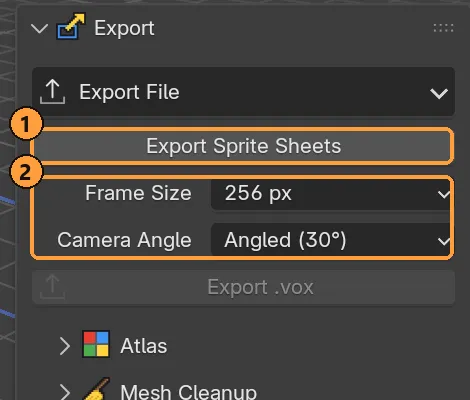
② Frame Size and Camera Angle.
| Setting | Choices |
|---|---|
| Frame Size | 64, 128, 256, 512 or 1024 px |
| Camera Angle | Level (0°): true front/back/side views for side-scrollers. Angled (30°): the classic three-quarter view. High (45°). Top-Down (60°) for top-down games. |
It writes a new animation_sprites folder (it never overwrites an old one)
holding:
- one sheet per direction,
- every frame as its own transparent PNG,
- a JSON file with frame timing and the pivot point.
Update Every N Frames and Strict Grid carry through, so a sprite sheet can have the stepped, perfectly axis-aligned look of hand-made pixel art.
Send to Unreal (Live Link)
Section titled “Send to Unreal (Live Link)”If you use Unreal, Send to Unreal pushes the model straight into an open Unreal project, with no file dialog. It needs the paired Voxel Mode Unreal plugin installed in the project; the plugin watches an exchange folder.
The plugin ships with the add-on. Press Install Unreal Plugin in this panel,
pick your Unreal project’s folder (the one with the .uproject file), then
restart the Unreal editor. It is copied to the project’s Plugins folder;
to update it later, close Unreal and press the button again.
| Setting | Meaning |
|---|---|
| Destination Path | Where in the Content Browser the asset lands |
| Pivot | Where the asset’s origin goes |
| Collision | Collision to generate |
| Send Textures | Include the atlas textures |
| Animation | Mode, export all Actions, morph targets, bake step, name prefixes for skeletal mesh / skeleton / animation |
| Options | Asset, material and suffix naming, master material, lightmap UVs, replace existing, exchange folder |
Check For Models looks for models waiting to come back from Unreal, and Open Exchange Folder shows the folder the two sides share.