Import and convert
Importing .vox files
Section titled “Importing .vox files”Import ▸ Import .vox in the Voxel tab of the sidebar, File ▸ Import ▸ Voxels (.vox), or Add ▸ Voxel ▸ Import Voxels (.vox). All three open the same importer, and you can pick several files at once.
You get an editable voxel model with the file’s palette and materials (metal, glass, emission). Files with several models come in with their placement.
To save a model as .vox again, use Export .vox.
Voxelizing a mesh
Section titled “Voxelizing a mesh”The Voxelize Mesh section turns any mesh into a voxel model. Select a mesh and set:
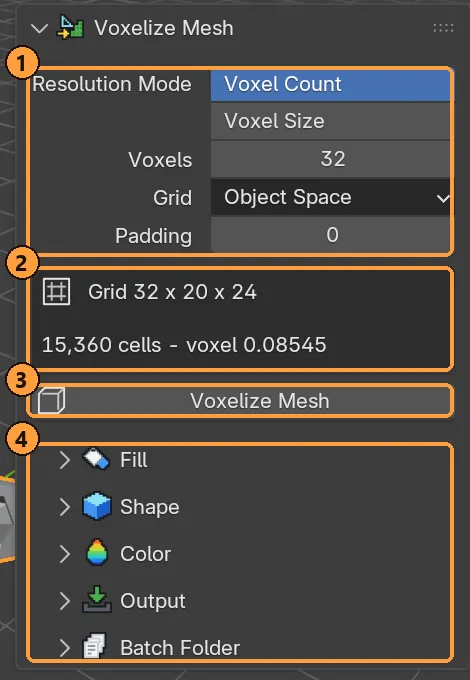
- Resolution: Voxel Count or Voxel Size, Grid and Padding.
- The grid and cell count you will get, before you commit.
- Voxelize Mesh.
- Fill, Shape, Color, Output and Batch Folder.
Resolution
| Setting | Meaning |
|---|---|
| Voxel Count / Voxel Size | Size the grid by how many voxels across, or by an absolute voxel size |
| Grid Align, Padding | Where the grid sits around the mesh |
The panel shows the resulting grid size and cell count before you commit.
Fill
| Setting | Meaning |
|---|---|
| Fill | Surface (only voxels the mesh surface touches) or Solid (the inside too) |
| Thickness | Conservative: every voxel the surface overlaps, thicker with no gaps. Thin: a thinner shell that is still gap-free. |
| Interior | How Solid finds the inside: Flood Fill carves the outside away (tolerates small gaps), Ray Parity handles open meshes |
| Dilate, Erode | Thicken or thin the result |
Color: Automatic by default. It uses the mesh’s colour attribute if it has one, otherwise its texture through the UVs, otherwise the material’s base colour. Colours are clustered into the first swatches of the palette, and the rest keep the standard palette, so there is always something to paint with. A mesh with one plain material and no texture comes out in that one colour. The panel’s grid estimate also works on a voxelize result: it shows what Re-voxelize will build from the source mesh.
Shape: Cubes gives an editable voxel model. Marching Cubes gives a smooth isosurface mesh instead; that is always a plain mesh, because smooth triangles have no grid behind them.
Output: a New Object beside the source, or Replace the source. Apply modifiers first or not, hide the source, and cap the voxel count.
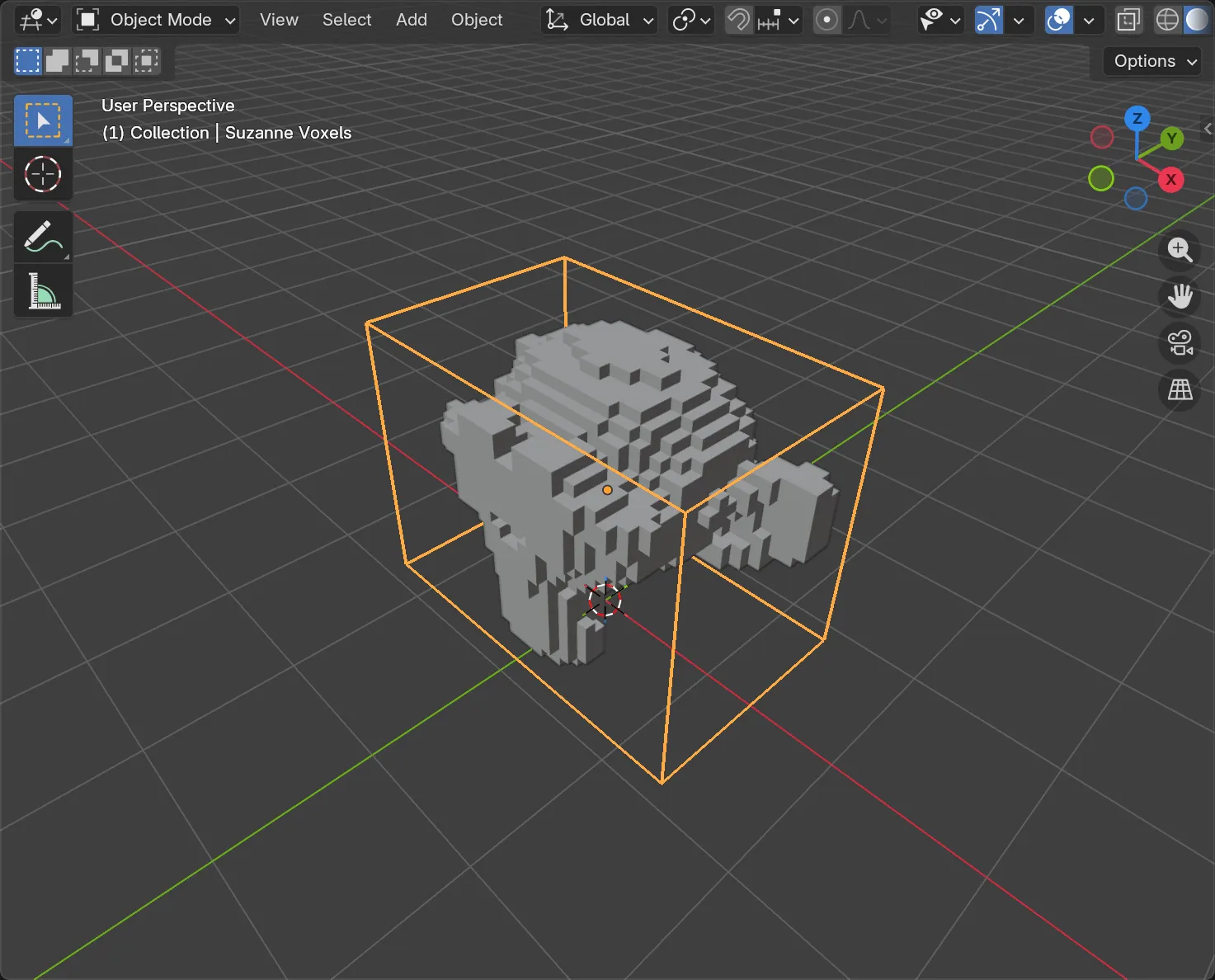
Press Voxelize Mesh. Re-voxelize redoes it with changed settings.
A whole folder at once
Section titled “A whole folder at once”Voxelize Mesh ▸ Batch Folder converts every FBX in a folder: choose input and output folders, include subfolders, a filename suffix, overwrite, and whether to export colours. It always uses an absolute voxel size so every file comes out at the same scale. Esc cancels.
Reshape: grow, shrink, hollow
Section titled “Reshape: grow, shrink, hollow”Voxel Mode ▸ Reshape works on the whole model or the active group:
| Button | Does |
|---|---|
| Grow | Adds Amount layers all round. Grow In Active Colour paints the new layers with your colour. |
| Shrink | Removes Amount layers from the outside |
| Hollow | Keeps only a shell Thickness voxels deep. Thickness 1 keeps exactly what you can see. |
Include Diagonals treats all 26 surrounding voxels as neighbours, which gives rounder growth.
Hollowing is the cheapest way to make a big model lighter to edit and export, since its inside is never seen.
Back from a mesh
Section titled “Back from a mesh”Finalise To Mesh works in both directions. Select meshes that were voxels
(finalised by Voxel Mode, or imported from .vox) and the same button, now
titled Voxel Model From Mesh, rebuilds one editable model from them. It is
also in Add ▸ Voxel ▸ From Finalised Voxel Mesh and Object ▸ Convert.
This is exact, not a re-voxelize: palette indices, materials and groups come back as they were.
| Option | Meaning |
|---|---|
| Fill Inside | Refill the hollow the bake left. Sealed cavities inside the model stay hollow. |
| Groups From Objects | Each source mesh becomes a group, which is the exact reverse of One Object Per Group |
| Voxel Size | 0 reads it from the mesh; set it only if the mesh has been scaled |
| Hide Source Meshes | Hide the meshes that were read |
| Enter Voxel Mode | Start editing the result straight away |
A mesh that isn’t on a voxel lattice is refused with the reason. Use Voxelize Mesh for those.