Shapes and the Voxel Library
A shape is a small voxel model with its own colours, ready to drop into yours. Voxel Mode ships 996 of them in 19 categories: buildings, nature, props, weapons, dungeon pieces, vehicles, characters and more. Browse them all in the Shape library reference.
Placing a shape
Section titled “Placing a shape”Three ways, all in Edit Mode:
- Shift + A opens the library as a menu under the mouse.
- Voxel Library in the sidebar: search, browse the categories, click a shape.
- The shape shelf along the bottom of the viewport: thumbnails you click, with a Recently Added tab. The first time, press Build Shape Gallery in the Voxel Library panel to publish the shapes to it.
The shape then floats under the mouse, resting on whatever face it is over. Nothing is written into your model until you confirm.
| Key | Does |
|---|---|
| Move the mouse | The shape follows, sitting on the surface under the cursor |
| X / Y / Z | Lock movement to that axis (press again to release) |
| R / Shift + R | Quarter turn one way / the other |
| S / Shift + S, + / −, Ctrl + wheel | Bigger / smaller |
| Arrow keys, Page Up / Page Down | Nudge one voxel |
| End | Drop straight down onto whatever is below |
| Click or Enter | Place it (one undo step) |
| Shift + click | Place it and keep another one floating |
| Esc | Cancel. Nothing was written, so nothing needs undoing. |
R turns about the locked axis, or about the axis that most faces you when none is locked. End looks at the shape’s actual voxels, so an L-shaped or hollow piece settles on what is really underneath it.
Placement settings (Voxel Library ▸ Placement):
| Setting | Meaning |
|---|---|
| Size | Edge length a built-in procedural shape is generated at |
| Use One Colour | Paint the whole shape in your active colour instead of its own |
| Mode | Add over what’s there, Replace (also clears the rest of the shape’s box), Carve (erase where the shape is solid), Paint (recolour only) |
A placed shape adopts the destination model’s voxel size, and keeps its own colours whatever palette the model uses. A colour the palette doesn’t have is added to Shape Colours.
Browsing the library
Section titled “Browsing the library”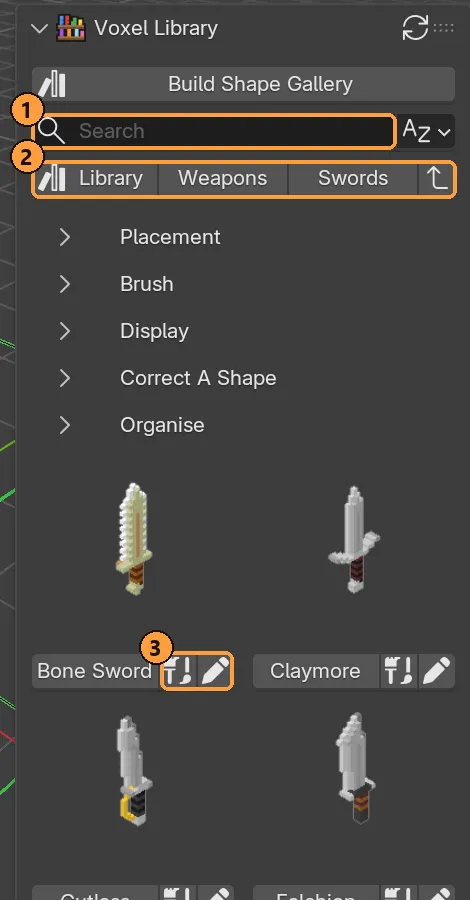
- Search across every category, and Sort.
- The breadcrumb: click Library or a parent to go back up.
- Each tile: the shape’s name places it; the two icons draw with it as a brush tip and open it for correcting.
- Search filters by name across every category.
- Sort by newest, oldest, name A–Z or Z–A.
- The breadcrumb walks back up the category tree.
- Display sets thumbnail size, columns, and whether a category shows shapes from its sub-categories too.
Each tile has buttons to place the shape, draw with it as a brush tip, and open it for editing. Right-click a shape for the same actions plus Delete.
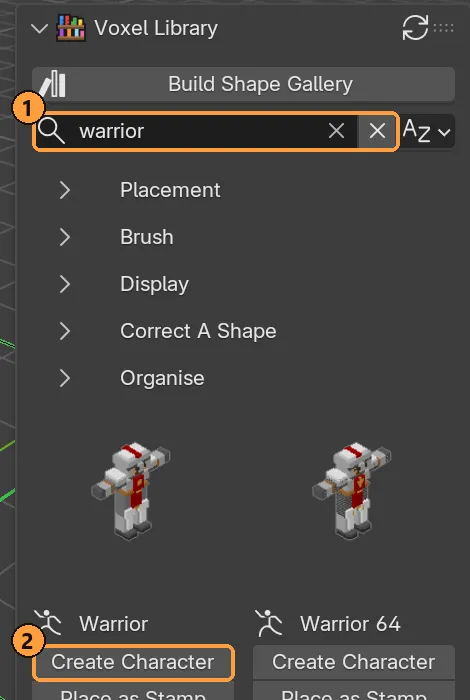
- Search for a character.
- Some tiles in Characters also have a Create Character button. It opens that figure with its body parts already assigned, ready to rig. See Characters.
Where shapes come from
Section titled “Where shapes come from”| Source | What it is |
|---|---|
| Built In | Everything that ships: the procedural primitives (box, sphere, room, heart, star, torus, arch and so on) and the 996 shipped shapes |
| My Shapes | Your own library folder. Set it in the preferences. |
| In This File | Shapes saved inside the current .blend |
Saving your own
Section titled “Saving your own”- Select the voxels you want with the Select tool.
- Voxel Library ▸ Organise ▸ Save Selection as Shape (or Shapes ▸ Save Shape in the Voxel Mode panel).
- Name it. Type slashes to file it in categories:
Beasts/Dragons/Wyrmsmakes all three levels at once.
A saved shape is cropped to its filled voxels and keeps its colours.
Import Shape… accepts .json shapes and .vox files. Export Shape… writes one out.
Organising
Section titled “Organising”In Voxel Library ▸ Organise, for your own shapes only:
- New Category, Rename Category, Delete Category
- Move Shape to another category, Rename Shape, Delete
- Open Folder shows the library on disk. A category is a real folder, so you can back it up, sync it, or hand it to someone as a plain folder.
- Refresh Library picks up files added outside Blender.
- Clear Previews rebuilds thumbnails.
Built-in shapes can’t be renamed, moved or deleted. They live inside the extension and an update replaces them.
Sharing shapes as a pack
Section titled “Sharing shapes as a pack”A whole category can travel as one .zip. Press F3 and search for:
- Export Shape Pack to write a category, with a manifest, to a
.zip. - Import Shape Pack to unpack one into your library. It never overwrites a shape you already have, and it refuses anything in the archive that tries to write outside the library.
Correcting a shape
Section titled “Correcting a shape”Any shape, built-ins included, can be opened, fixed and saved back:
- Click the open (pencil) button on its tile, or Correct A Shape ▸ Open Shape. It opens as a normal voxel model with room around it.
- Edit it.
- Save Over Shape writes it back where it came from, cropped to what you built.
The shape examples scene
Section titled “The shape examples scene”Preferences ▸ Voxel Mode ▸ Open Shape Examples opens a scene with every shipped shape as its own editable model, filed into collections by category. It opens as an unsaved file, so Ctrl + S asks where to save.