Customising shortcuts
Every keyboard shortcut Voxel Mode adds can be changed. The full default list is in the Keyboard shortcuts reference.
Rebinding a key
Section titled “Rebinding a key”- Open Edit ▸ Preferences ▸ Add-ons, expand Voxel Mode, and open Keyboard Shortcuts.
- Use Filter to find the shortcut by name.
- Click its key button (Press a key…) and press the new key, with modifiers.
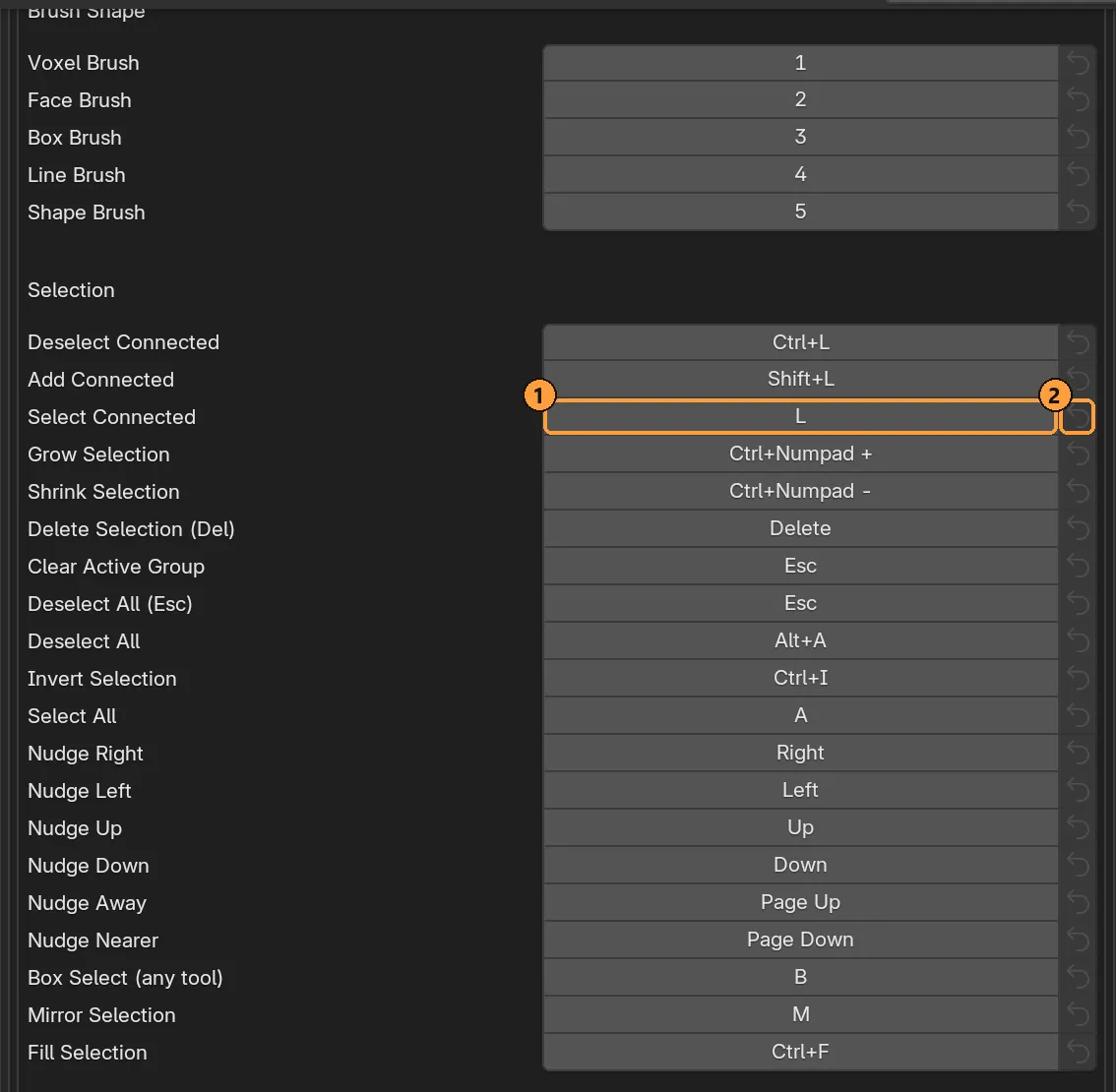
① Click a key to rebind it. ② Reset that one shortcut.
| While capturing | Does |
|---|---|
| Any key | Bind it |
| Esc | Keep the current key |
| Backspace | Unbind it: the shortcut has no key |
The ↺ button beside a row resets that one shortcut; Restore All resets them all. The change is live immediately, and tool tooltips name the key you actually set.
Only what you change is stored. If a later version moves a default you never touched, you get the new default.
Clashes
Section titled “Clashes”Two shortcuts on one key are allowed, not refused. The panel marks the row in red and names the other shortcut. The one listed first answers first. A shortcut only takes the key when it has something to do, and otherwise the press passes to the next one.
Voxel Mode relies on that on purpose. Esc first clears the active group highlight, then the selection, then goes to Blender (which stops playback). S scales a selection if there is one and otherwise resizes the model.
What cannot be rebound
Section titled “What cannot be rebound”- Mouse clicks: click, Shift, Ctrl and Alt chords. The hover cursor reads the same table, so what you see before a click always matches what the click does. A rebound left click would leave no way to draw.
- Keys inside a running transform or placement (X/Y/Z, arrows, End, R/S). They belong to the move itself.
Why a key sometimes does Blender’s thing
Section titled “Why a key sometimes does Blender’s thing”Blender checks keymaps in a fixed order, and a mode’s own keymap (“Mesh”, “Object Mode”) comes before an add-on’s. So Voxel Mode can only override a key Blender uses in Edit Mode through the voxel tools’ own keymaps. Those shortcuts therefore work while a voxel tool is active, which is what “Edit Mode, any voxel tool” means in the reference.
It also works the other way: Voxel Mode keys never fire on an ordinary mesh. Edit a normal mesh and 1/2/3, L, Shift + A and the rest are Blender’s again.
The Keyboard Shortcuts list is drawn by Voxel Mode, not by Blender’s keymap editor. Blender’s editor cannot reach keys that belong to a tool.