Drawing, erasing and painting
The three tools
Section titled “The three tools”| Tool | Key | Click | Shift + click | Ctrl + click |
|---|---|---|---|---|
| Attach | D | Add | Erase | Paint |
| Erase | E | Erase | Add | Paint |
| Paint | R / P | Paint with the primary colour | Paint with the secondary colour | Add |
Every tool also has:
| Chord | Does |
|---|---|
| Alt + click | Pick the colour under the cursor (eyedropper) |
| Shift + Alt + click | Draw on the grid’s floor and walls, even over empty space |
| Ctrl + Alt + click | Switch to editing the model under the cursor |
The hover cube tells you what a click will do before you click. It’s white for add, red for erase (a whole red box when you drag), and the swatch colour for paint. Erase and Paint only touch voxels that exist, so a drag over empty space never promises anything it can’t do.
The five brush shapes
Section titled “The five brush shapes”Switch with the number keys while any voxel tool is active, or in Voxel Mode ▸ Brush:
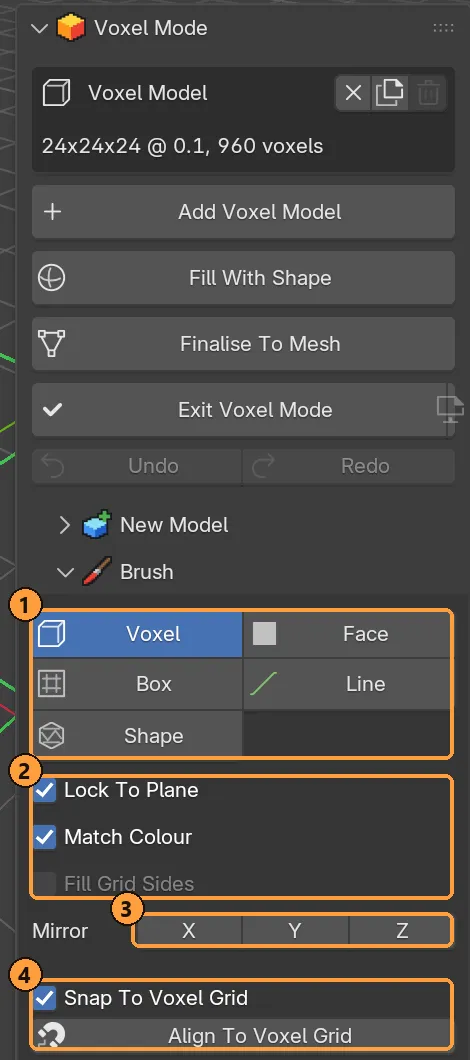
- The five brush shapes.
- Lock To Plane and Match Colour (and Fill Grid Sides for the Face brush).
- Mirror on X, Y and Z.
- Snap To Voxel Grid, and Align To Voxel Grid for models already out of place.
1 Voxel
Section titled “1 Voxel”One voxel per cell the cursor crosses. Drag for a freehand trail.
2 Face
Section titled “2 Face”The most useful brush. Press on a face and drag along its normal.
- Dragging away from the model stacks a layer per voxel of movement.
- Dragging back peels layers off again, and past the original surface it carves into the model.
- With Erase, it works the other way round.
What counts as “the face” is the flat region under the cursor:
- Match Colour on (the default): only the connected, single-coloured flat area. Use colours to mark out parts and the brush respects them.
- Match Colour off: the whole flat layer, whatever its colours.
Either way, a hole or a covered face stops the spread.
Fill Grid Sides (off by default) lets a Face click that misses the model use the grid’s floor, walls and ceiling as a face. One click lays a floor, and one drag builds a slab. It’s off because a near miss would otherwise add a whole side.
Drag a rectangle from corner to corner. To give it depth, tap X, Y or Z mid-drag (see axis locks) and keep moving. A box erase can start in empty space, dragged from a corner in the air.
4 Line
Section titled “4 Line”A straight line from press to release. Hold Shift while dragging to pin it to the single axis you are pulling along.
5 Shape
Section titled “5 Shape”Any shape in the Voxel Library becomes the brush tip, stamped along the drag. The tip is a silhouette: it paints in your active colour, not the shape’s own colours. Set it in Brush ▸ Shape, or right-click any shape in the library and choose Draw With ….
| Setting | Meaning |
|---|---|
| Size | Edge length a built-in tip is generated at |
| Fit To Size | Scale a saved shape so its longest side matches Size |
| Spacing | How many voxels the cursor travels before it stamps again |
The Brushes category of the library holds tips made for this: chisel, cross, plus and others.
Typing an exact count
Section titled “Typing an exact count”Mid-stroke, type a number. It means how many voxels:
| Brush | The number counts |
|---|---|
| Face | Layers. Press on a face, type 5, get five layers. |
| Voxel | Voxels along the drag direction, with the run in between filled |
| Line, Box | How far it reaches along the drag |
Backspace deletes a digit, - flips the direction (on a face: carve instead of build), and Enter confirms without releasing the mouse. You can type before moving the mouse: the direction then comes from the face you clicked.
Locking a stroke to an axis
Section titled “Locking a stroke to an axis”While dragging, tap X, Y or Z and the stroke moves only along that axis, from where the drag is now. Tap it again to let go, or tap another axis to switch. Drag a trail, tap Z, and the column carries on straight up.
A locked axis overrides Lock To Plane while it is held. Dragging past the grid edge clamps to the wall rather than stopping.
Lock To Plane
Section titled “Lock To Plane”On by default. A drag stays on the plane of the face it started on, instead of climbing up the voxels it is drawing. It only applies when the stroke starts on a face.
Mirroring
Section titled “Mirroring”Mirror X / Y / Z in the Brush panel (or the pie, Shift + Alt + S) repeat every stroke across the middle of the grid on that axis. Turn on several for two- or four-way symmetry.
Ctrl + Z and Ctrl + Shift + Z. A stroke, however long, is one step. These keys work wherever the mouse is, over the sidebar included. The Voxel Mode panel also has Undo and Redo buttons.
Fast drags
Section titled “Fast drags”The mouse reports its position only so many times a second. When you drag fast, Voxel Mode fills the gap between two samples, so a quick stroke is a continuous line and not a dotted one.