Selecting and transforming
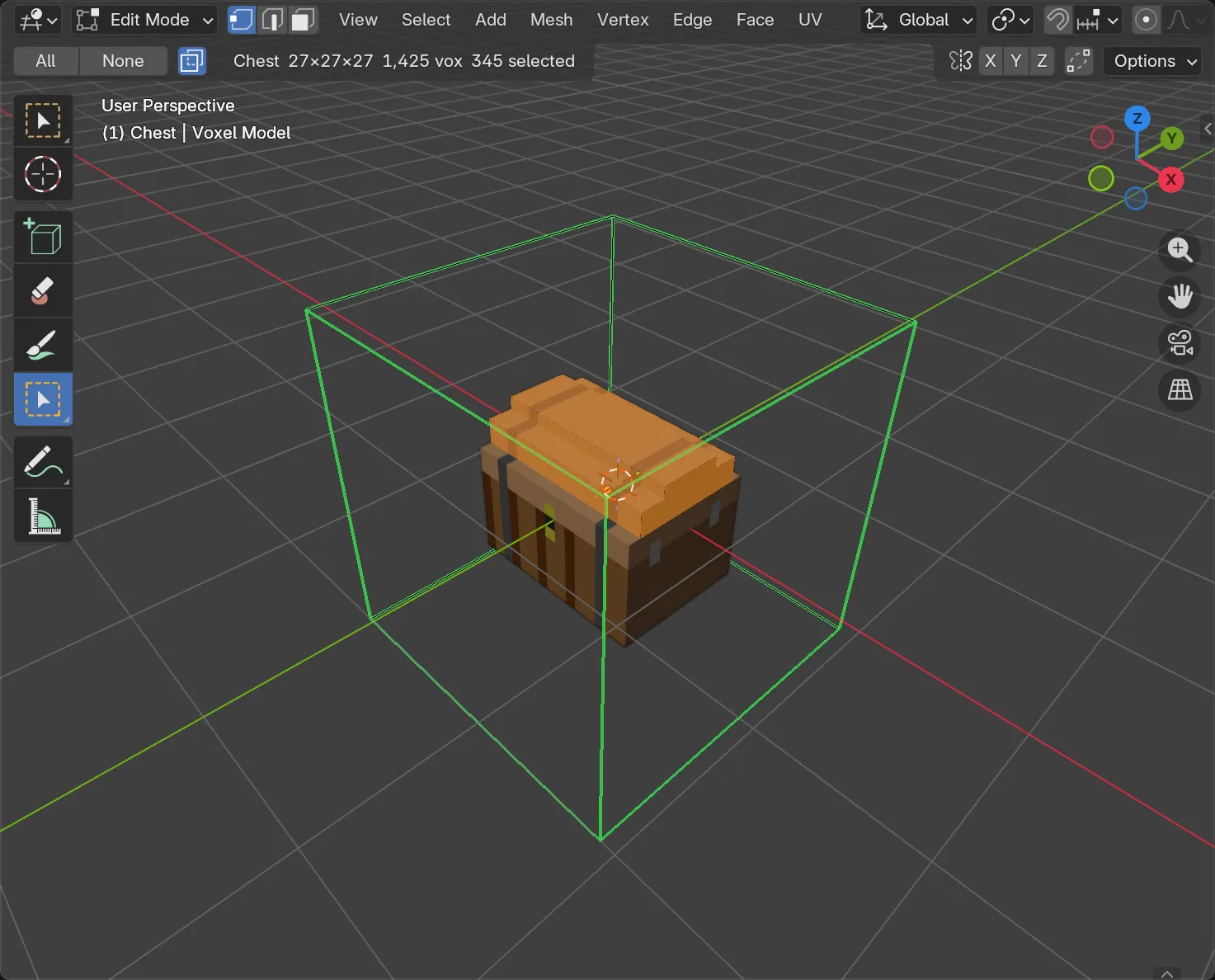
A selection names voxels. It shows orange and survives tool switches, except that switching to a brush (Attach, Erase, Paint) clears it.
Everything on this page is also a button in Voxel Mode ▸ Selection:
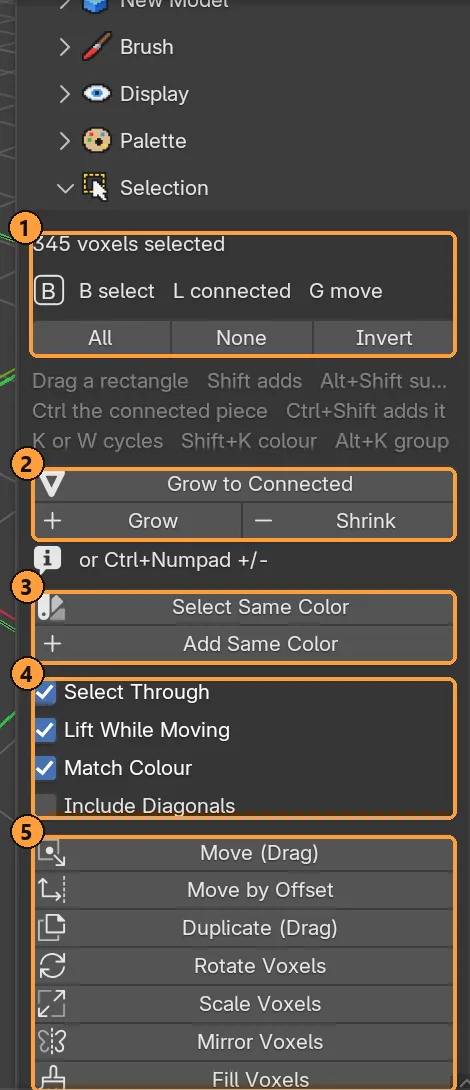
- How many voxels are selected, and All, None, Invert.
- Grow to Connected, Grow and Shrink.
- Select Same Color and Add Same Color.
- Select Through, Lift While Moving, Match Colour, Include Diagonals.
- Move, move by offset, duplicate, rotate, scale, mirror, fill and delete.
The three select tools
Section titled “The three select tools”They share one toolbar slot. Q (also W or K) activates the slot, and pressing it again cycles through the three.
| Tool | Straight there | A click takes |
|---|---|---|
| Select Voxels | Q | The box you drag (a click alone is one voxel) |
| Select Same Colour | Shift + Q | Every voxel of that colour, anywhere in the model |
| Select Group | Alt + Q | Every voxel in that group |
The modifiers mean the same on all three:
| Chord | Does |
|---|---|
| click / drag | Set the selection |
| Shift | Add to it |
| Alt + Shift | Subtract |
| Ctrl | The connected piece under the cursor (magic wand) |
| Ctrl + Shift | Add the connected piece |
Box select from any tool
Section titled “Box select from any tool”B starts a box select from any tool, Blender’s own Select Box included. Tap X, Y or Z during the drag and the far corner locks to that axis. Drag a rectangle on the floor, tap Z, and the mouse now pulls the box up through the model. That’s how you select a volume rather than a face.
Select Through (Selection panel, on by default) takes everything behind the rectangle, all the way through the model. Turn it off to take only the surface facing you, which is useful for repainting one face.
Connected pieces
Section titled “Connected pieces”| Key | Does |
|---|---|
| L | Select the connected piece under the cursor |
| Shift + L | Add it |
| Ctrl + L | Remove it |
| Grow to Connected | Spread from what is already selected (panel button) |
With Match Colour on, the spread stops where the colour changes, so a red arm comes away from a blue body. Include Diagonals counts voxels touching only at an edge or corner. Turn it on for thin curved shells, whose voxels step diagonally and otherwise fall apart into scraps.
Grow, shrink, all, none
Section titled “Grow, shrink, all, none”| Key | Does |
|---|---|
| Ctrl + Numpad + | Grow one layer (hold to keep growing) |
| Ctrl + Numpad − | Shrink one layer |
| A | Select every voxel |
| Alt + A | Select none |
| Esc | Select none (clears the active group highlight first, if one is shown) |
| Ctrl + I | Invert |
Growing only reaches into filled voxels, and obeys Match Colour. Shrinking is its exact reverse: grow four times, shrink four times, and you are back where you started.
Select Same Color and Add Same Color in the panel take the colours of what is already selected. Select one voxel, press the button, and everything painted like it is selected.
Moving
Section titled “Moving”| Key | Does |
|---|---|
| G | Move the selection with the mouse |
| Shift + D | Duplicate, then move the copy |
| Shift + G | Move by a typed offset |
| Arrow keys | Nudge one voxel, in screen directions |
| Page Up / Page Down | Nudge away from / towards you |
During a move:
- X / Y / Z lock to an axis (press again to unlock).
- The arrows nudge a voxel at a time.
- End drops the piece straight down onto whatever is under it.
- R or S switches to rotate or scale without cancelling.
- Click or Enter confirms; Esc or right-click puts everything back.
A move cuts: the source is emptied. The destination shows as a white ghost, and nothing is written until you confirm. With Lift While Moving on (the default), the moving voxels leave the model for the length of the drag, so only the piece you are aiming is on screen.
A duplicate joins the same group as its original, so “build one leg, duplicate it three times” gives you four legs.
Rotating
Section titled “Rotating”Shift + R. (Plain R is the Paint tool.) Move the mouse around the selection’s centre to turn it in quarter turns. X/Y/Z pick the axis, and ←/→ turn a quarter at a time. Rotations are exact: four quarter turns always give back the original.
Scaling
Section titled “Scaling”S with a selection. Drag away to grow, towards the centre to shrink; ↑/↓ step one voxel. Scaling is always uniform.
- Growing repeats voxels, so blocky stays blocky.
- Shrinking keeps any block that had something in it, so a one-voxel-thick wall survives being halved instead of vanishing.
- At a wall, a growing selection slides away from it instead of stopping halfway.
To resize the whole model instead, press S in Object Mode (see Models).
Mirror, fill, delete
Section titled “Mirror, fill, delete”| Key | Does |
|---|---|
| M | Mirror the selection (Select tool) |
| Ctrl + F | Fill the selection with the active colour (Select tool) |
| X or Delete | Delete the selected voxels |
The pivot gizmo
Section titled “The pivot gizmo”While a rotate or scale runs, three rings and a cross mark the selection’s centre, with the active axis lit. It’s a readout, not a handle. Turn it off with Display ▸ Show Pivot Gizmo.