Paint with palettes and materials
You will make: a stone pedestal with a glowing lantern beside a glass-topped pool. You will learn: multi-select and Gradient, per-swatch materials (glow, glass, transmission), the built-in Water and Glass palette, saving a palette file. Time: 12 minutes.
1. A model to paint
Section titled “1. A model to paint”- Voxel ▸ New Model: Size 24, Add Voxel Model.
- Press 3 for the Box brush and drag a 16 × 16 slab, one voxel thick, for the ground.
- In one corner, box up a 4 × 4 × 6 pedestal, and beside it a 3 × 3 × 3 lump for the lantern head.
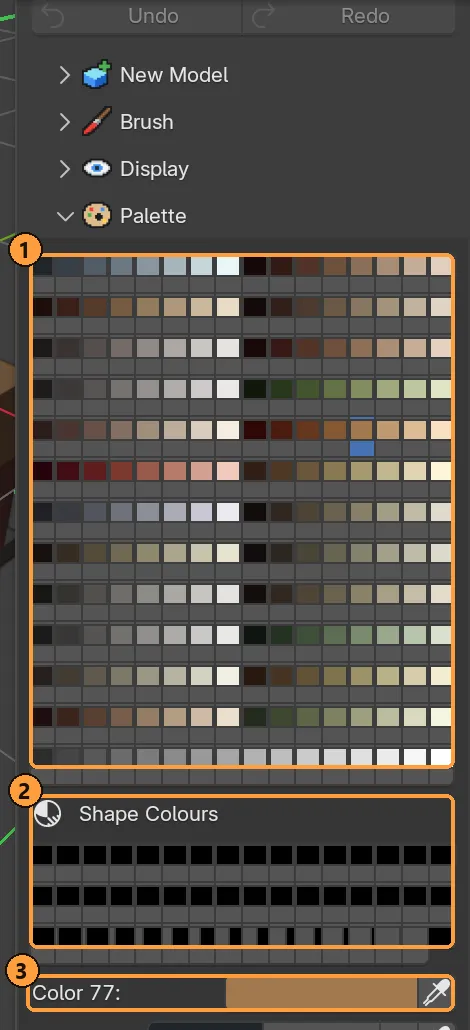
Open Voxel Mode ▸ Palette. ① is the swatch grid, ② is Shape Colours — free slots that placed shapes and Scatter fill automatically — and ③ is the active colour, which opens Blender’s colour picker.
2. Multi-select and a gradient ramp
Section titled “2. Multi-select and a gradient ramp”The built-in palette lays its columns out as eight-step ramps, light to shadow. Pick a whole ramp at once instead of one flat colour:
-
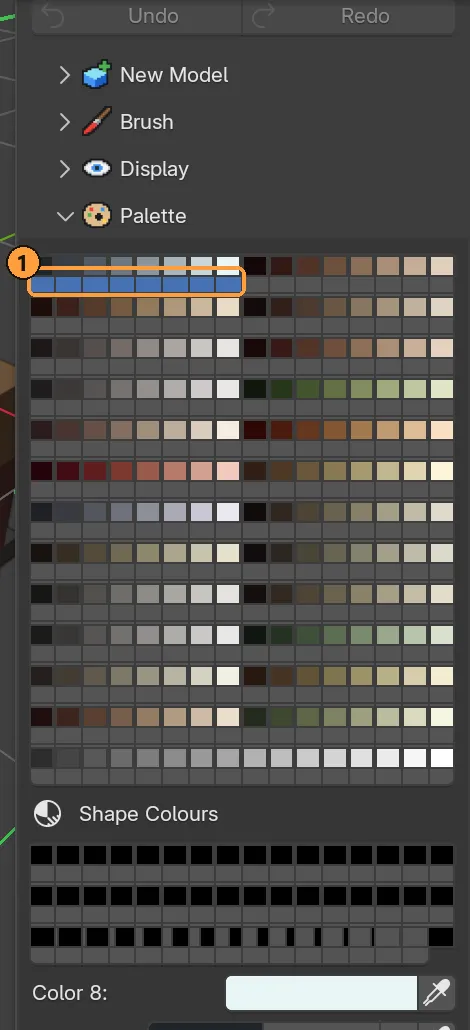
Click swatch 1, then Shift-click swatch 8. The panel now counts 8 picked and lights up Gradient, Copy To Picked and Adjust Colours.
-
Press Gradient (or Ctrl + G over the sidebar). The redo panel offers RGB or round the wheel; leave it on the default and confirm. Every entry between the two ends now blends smoothly.
-
Paint the pedestal with this ramp: darker steps low, lighter steps high, the same trick the prop tutorial used for shading a lid.
Ctrl + click adds or drops one swatch from a pick without disturbing the rest; Shift + click always takes the whole run between two clicks.
3. A swatch that glows
Section titled “3. A swatch that glows”Materials live on the swatch, not the voxel, so one change relights every voxel painted with it.
-
Pick an empty swatch past the ramp and paint the lantern head with it.
-
Open Palette ▸ Material with that swatch still picked.
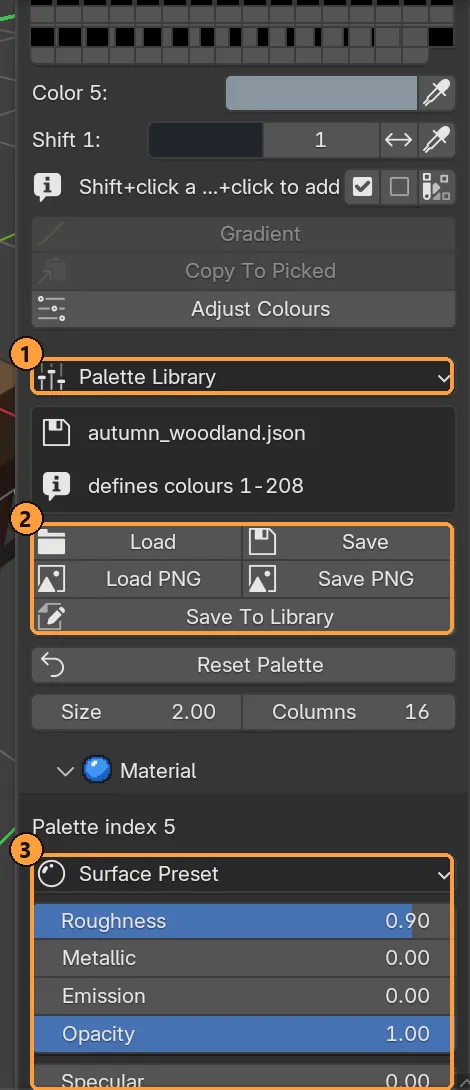
① is Palette Library, ② the file buttons, ③ the picked swatch’s material: preset, then Roughness, Metallic, Emission, Opacity, Specular, Transmission and IOR.
-
Raise Emission. The swatch’s own colour becomes its glow colour.
4. Water and glass
Section titled “4. Water and glass”- Palette Library ▸ load the Water and Glass built-in palette. It carries ready-made water, deep water, ice and glass entries with the right Transmission and IOR (water 1.33, glass 1.5, ice 1.31) already set.
- Box brush a shallow pool beside the pedestal — a rim of stone, water one layer below its top — and paint the water swatch across the top.
- Cap it with the glass swatch on one edge, angled as a pane.
A water surface only reads as water when it has something above to reflect and something below to see through: a flat pool over an empty floor renders as a blue lid, not water.
5. Save your palette
Section titled “5. Save your palette”- With the lantern and pool swatches still edited, open Palette Library
and press Save To Library, or Save for a
.jsonyou keep yourself..jsoncarries colours and materials; Save PNG is colours only, as a 256 × 1 strip. - Give it a name. It now appears in Palette Library for every future model.
- Palette and materials for the full reference: Shape Colours, palette layout, and every material setting.
- Generate a scene to grow terrain and water automatically instead of by hand, and see this palette’s Water and Glass entries put to work.