Model a prop
You will make: a treasure chest, 16 voxels wide, painted with a proper light-to-shadow ramp. You will learn: Box and Face brushes, mirroring, typed counts, selection and move, placing a library shape, picking palette ramps. Time: 15 minutes.
1. A model and a palette
Section titled “1. A model and a palette”-
Voxel ▸ New Model: set Size to 32, then Add Voxel Model.
-
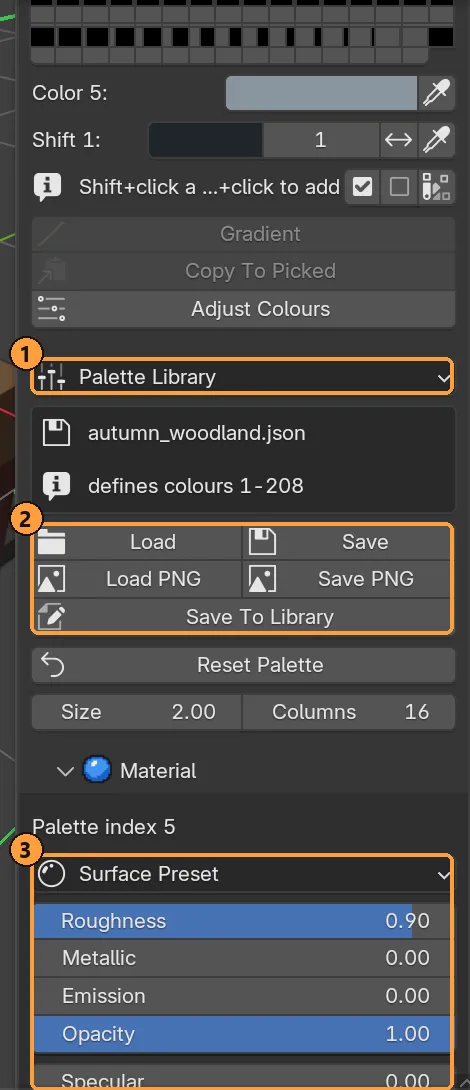
Open Palette, choose Autumn Woodland in the Palette Library dropdown ①, and load it. Its first rows are eight-step ramps from shadow to highlight.
2. The body
Section titled “2. The body”- Pick a mid-brown swatch (C, click).
- Turn on Mirror X in the Brush panel, or with Shift + Alt + S ▸ Mirror X.
- Press 3 for the Box brush. Drag a 16 × 10 rectangle on the floor, centred. Tap Z without letting go, move up 8 voxels, release.
Mirror X means you only need to get one half right; the other half follows.
3. The lid
Section titled “3. The lid”- Press 2 for the Face brush and press on the top of the box.
- Type 3. Three layers appear.
- Release.
4. Bands and a lock
Section titled “4. Bands and a lock”- Pick a dark iron grey. Press R for Paint and 4 for Line.
- Drag straight lines around the box for two iron bands. Hold Shift to keep each line on one axis.
- Switch back to Attach (D) and the Voxel brush (1), pick a gold swatch, and add a 2 × 2 lock on the front.
5. Shade it
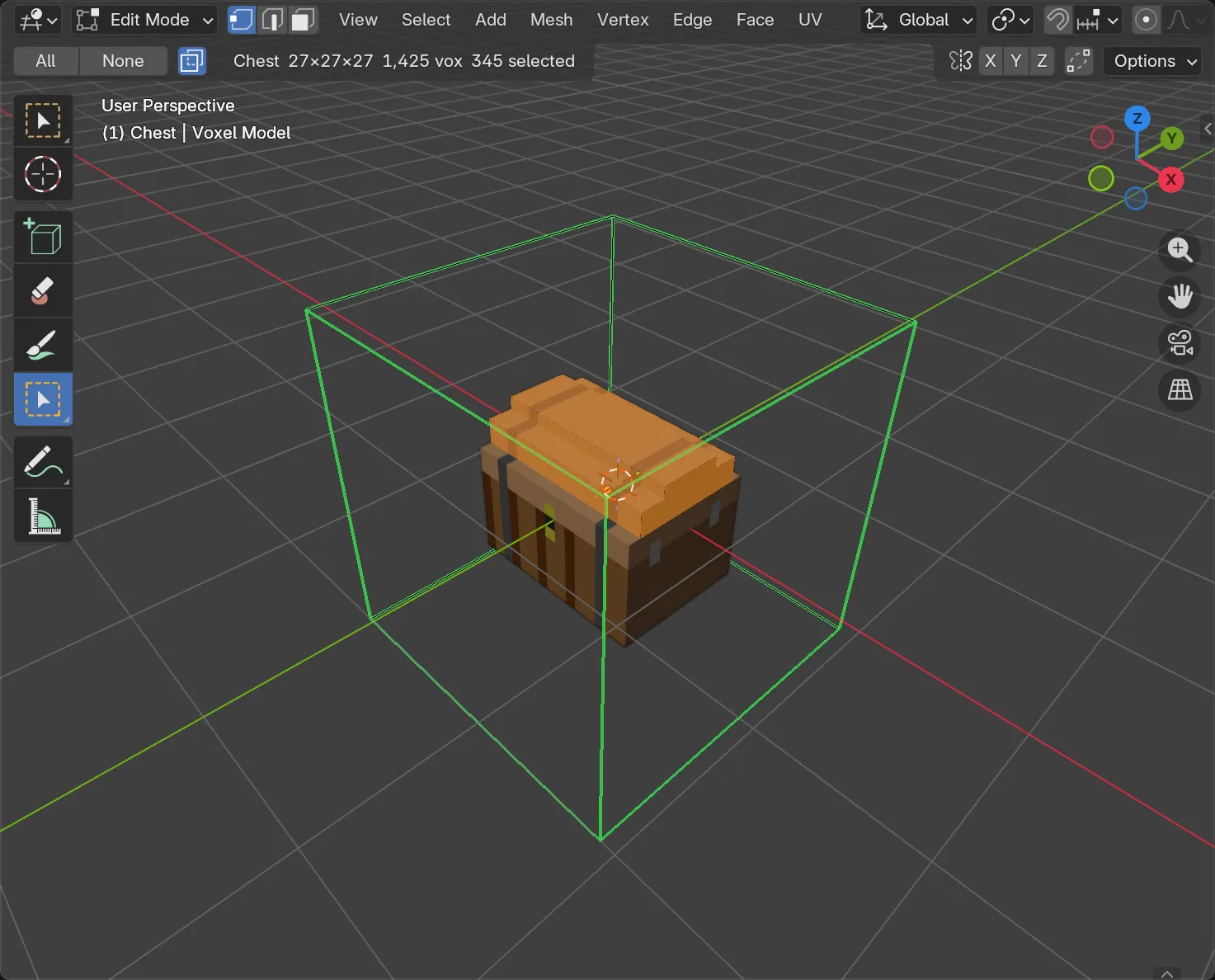
Section titled “5. Shade it”A voxel model reads as solid when the top is lighter than the sides.
- Press Q for Select, and B-drag over the lid from above. Turn Select Through off first, so only the top surface is taken.
- Pick a lighter step of the same brown ramp and press Ctrl + F to fill the selection with it.
6. Add a library shape
Section titled “6. Add a library shape”- Press Shift + A and browse to Gear ▸ Treasure. Pick the coin pile or a gem. It keeps its gold even though your palette is Autumn Woodland: its colours are added to the Shape Colours row at the bottom of the palette.
- It floats under the mouse. Move it onto the lid, press End to drop it until it rests, R to turn it, then click to place.
7. Save it as your own shape
Section titled “7. Save it as your own shape”- Press A to select everything.
- Voxel Library ▸ Organise ▸ Save Selection as Shape, and name it
Props/My Chest.
It is now in your library, ready for Shift + A in any model.
- Generate a scene to put the chest in.
- Selection for everything the Select tool can do.