Pictures and meshes into voxels
A picture
Section titled “A picture”- Make a model (64 or 128) and enter it.
- Open Voxel Generators ▸ Picture.
- Pick an image that is loaded in Blender. To load one, use Image ▸ Open in any Image Editor.
- Choose Flat Picture, set the View it stands in, a Thickness and a Width, then click Generate. Pixel art comes out one voxel per pixel.
Carve From Views takes two or three images (front, side and top) and keeps only what every view agrees is solid. Draw a quick front and side silhouette and you have a blocked-out figure to refine.
Colours are matched to the model’s palette, so load a palette that suits the image first.
A mesh
Section titled “A mesh”-
Select any mesh object.
-
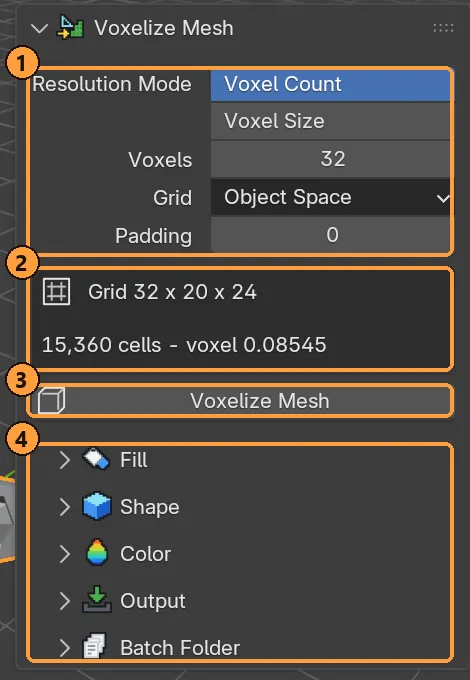
In Voxelize Mesh, set Voxel Count (how many voxels across) and check the grid size the panel reports.
-
Choose Fill: Solid for a solid you can carve, or Surface for a shell.
-
Leave Color: Automatic to take the colour attribute, texture or material colour.
-
Click Voxelize Mesh ③.
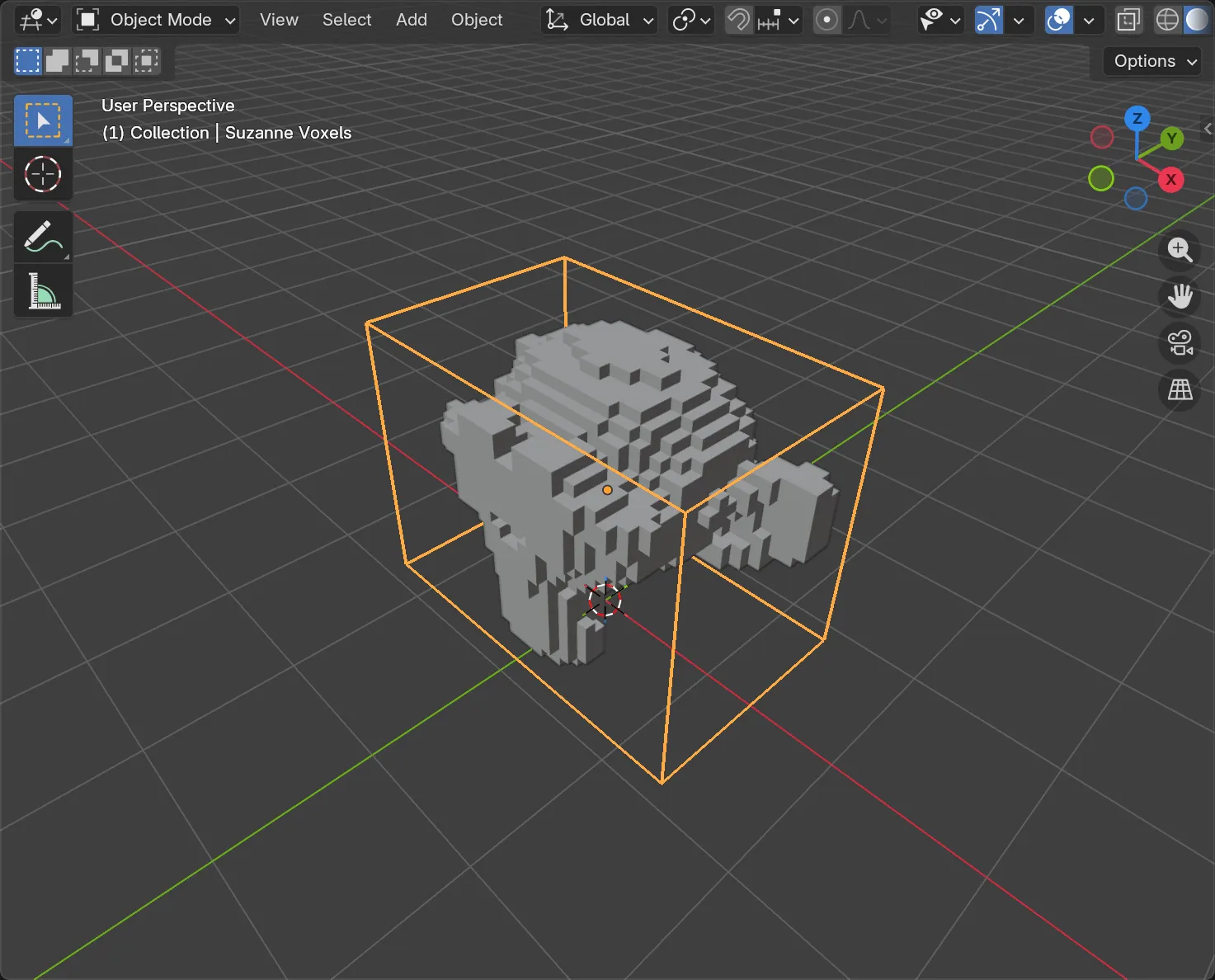
You get an editable voxel model. Paint it, rig it and export it like anything else.
For a whole folder of FBX files, use Voxelize Mesh ▸ Batch Folder.
A mesh that used to be voxels
Section titled “A mesh that used to be voxels”If the mesh came from Voxel Mode (a finalised model) or a .vox import, don’t
voxelize it. Select it and click Finalise To Mesh, which now reads Voxel
Model From Mesh. That rebuilds it exactly, palette and groups included.